Opening a book
The program starts with the library. It lists every book you have opened before, the most recent one first. Clicking a book opens it where you left off.
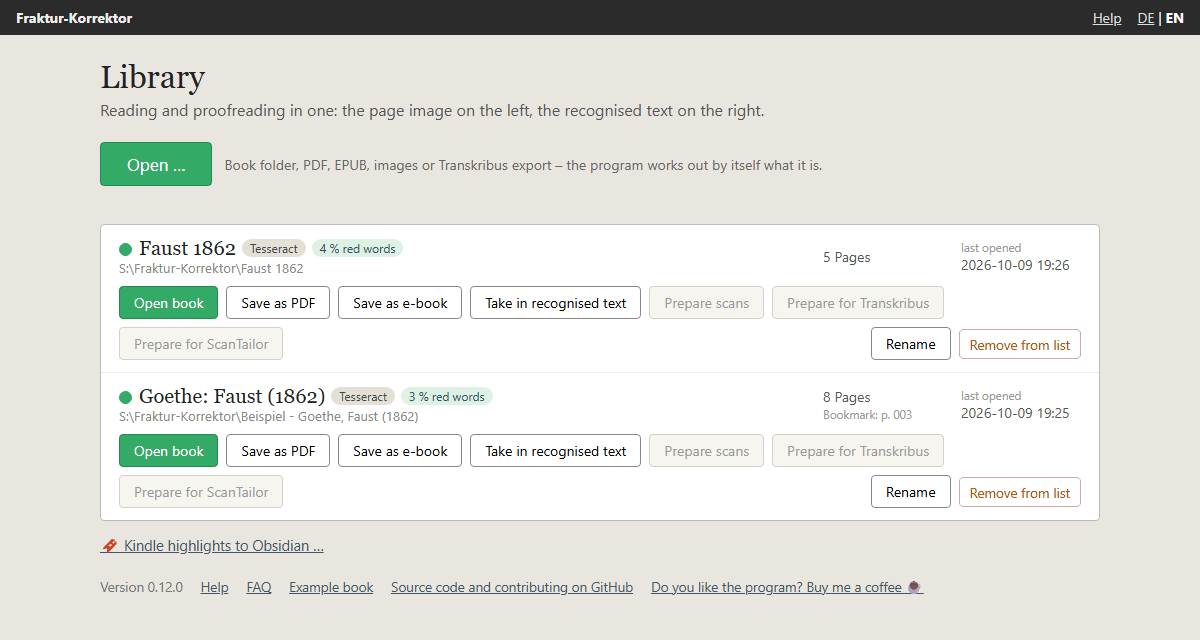
One button for everything: “Open …”
You do not need to know in which form your book exists. Click Open … and show the program a file or a folder. It looks at what is inside and suggests how to go on:
| Found | What happens then |
|---|---|
| 📖 Book – a folder you have already worked on with Fraktur-Korrektor | is opened immediately |
| 📕 Saved book (PDF) – a PDF written by Fraktur-Korrektor, on another computer too | is created as a book with everything in it. See Saving a book as PDF |
| If it is already searchable, its text is taken over within seconds; otherwise Tesseract recognises the text. See Reading in a PDF or images | |
| 📗 EPUB | If a PDF of the same name lies next to it, the scan appears on the left and the EPUB text on the right. If it lies elsewhere, fetch it with Choose the matching PDF …. Without a PDF the book is opened without page images. If the saved PDF of the same book lies next to it, the program recommends the PDF (see Saving a book as e-book) |
| 🖼️ Page images – a folder with JPG, PNG or TIF | Tesseract recognises the text |
| 🗂️ Export from Transkribus – ZIP file or unpacked folder | is imported. See Working with Transkribus |
| 📄 Project folder of ABBYY FineReader (older versions: a folder with many subfolders 0001, 0002 … and a file whose name is in curly brackets and ends in “.source”) | It holds the original scan as a PDF – this is read in like any PDF and named after the folder. The program does not take over FineReader’s own text: older versions read Fraktur as ordinary type, so Tesseract almost always does better |
If you choose a whole folder, the program often finds several things – for example a PDF, an EPUB and a book you have already been correcting. It then shows all finds with page count and date. The first one is the recommendation:
- A book that already contains corrections always comes first (“your work is in here”) – so that you do not start from scratch by accident.
- After that comes whatever is furthest along: a Transkribus export before an EPUB, an EPUB before a PDF, a PDF before loose images.
- If another find is newer than the recommendation, it says so.
You can click a different find at any time. If the case is clear, the program does not ask at all.
EPUB and PDF together
Have you already turned a book into an EPUB and want to read it against the scan once more? Put the EPUB and the PDF with the same name into the same folder – additions such as “(durchsuchbar)”, “(kompakt)” or “_OCR” do not matter:
Fatma - Immanuel Walker.epub
Fatma - Immanuel Walker (durchsuchbar).pdf
The program takes page images and lines from the PDF and puts the wording of the EPUB into these lines. Hyphenation at line ends is kept. Running heads and footnotes that are placed elsewhere in the EPUB, or not at all, keep the text from the PDF. At the end you are told what percentage of the lines carry the EPUB text. If there are several matching PDFs, the searchable one with the better image quality is used.
The EPUB itself is not changed; your corrections go into the text files of the new book folder.
Together with the wording comes the formatting of the EPUB: headings (they appear right away in the contents,
I), paragraph starts, bold, italics, superscript footnote marks – also where the EPUB sets them through its
style sheet. Without a PDF, tables become tables again too. Where an EPUB breaks a paragraph in the middle of a
sentence (some were split at the lines of their source), no new paragraph begins.
Adding headings and type styles later
Books taken in from an EPUB before version 0.12 did not get the headings, paragraphs and type styles of the EPUB.
You can add them in the library without starting over: click Headings from the e-book at the book, choose the
EPUB, Take over. The program looks up every line in the EPUB and adds the formatting only where the line
matches for certain. No word is changed, and whatever you have already marked stays. If you do not like the result,
U in the reading view undoes everything at once.
The PDF lies elsewhere
If the PDF has a different name or lies in another folder, the program cannot find it by itself. Then the EPUB is marked “no PDF of the same name next to it”, with the button Choose the matching PDF … below. Pick the PDF with it – or paste its path into the field. From there on it works just like EPUB and PDF in the same folder.
The program takes a sample to check whether the PDF really belongs to this EPUB: if the PDF already contains text, it compares word sequences from a few pages with the EPUB and tells you right away whether it fits. If the PDF contains only images, this shows after text recognition. If the PDF does not belong to this text, no book is created – you choose another PDF or create the EPUB without page images. So a foreign scan never ends up next to your text.
The PDF arrives later
If you have already opened the EPUB without a PDF and perhaps corrected in it, you need not start over: in the library such a text-only book has the button Add PDF (see Continue working on a book). A new book is created next to it: page images and lines from the PDF, the wording from the text-only book – with all corrections you have made there and with your word list. The text-only book itself stays as it was; if you no longer need it, remove it from the list with the ✕. It has to be a new book because the pages of the text-only book have nothing to do with the pages of the scan – log and bookmark belong to the text-only book.
Export from Transkribus
In Transkribus, choose “Action” → “Export” and the format “Page XML”; for a new book also tick “Images”, so the page images come along. Open the downloaded ZIP file here as it is – there is no need to unpack it. The whole route step by step: Working with Transkribus.
During import the program detects running heads (page numbers) and separates footnotes from the main text.
Where it gets this wrong, fix it while reading with the F key (see Usage). If the export contains
no page images, the program looks in the chosen folder for an image folder with exactly as many images as the
export has pages, and suggests it.
Nothing is ever overwritten: if the title already exists, a second folder with the suffix “(2)” is created.
Continue working on a book
A book is rarely finished in one go: first you read in a PDF, then you have the pages prepared (double pages split, straightened), then you have the text recognised by Transkribus. You do not have to start over every time.
In the library, every book has a row of buttons below it. Next to Open book there are more ways:
| What for | |
|---|---|
| Take in recognised text | The text from Transkribus – or the text a library publishes for its digitised copy – takes the place of the present one. Your page images, your word list and your bookmark stay where they are. You may point at the ZIP file, the unpacked folder or the text file of the export, or at a folder of hOCR or ALTO files (see below). |
| Add page images | For books that are text only – a Transkribus export without images, say. Point at a folder of images, at the PDF the pages come from, or at another book that already has them. |
| Add PDF | For a text-only book from an EPUB that was opened without a PDF. Point at the PDF of the scan: a new book is created with the pages of the scan and your text including corrections (see EPUB and PDF together). |
| Headings from the e-book | For books taken in from an EPUB before version 0.12: add headings, paragraphs, bold and italics from the EPUB without changing a word (see Adding headings and type styles later). Appears only where something is missing. |
| Prepare for Transkribus | The program names the folder you upload, puts it on the clipboard and opens it in a file window. |
| Prepare scans | Splits double pages and straightens crooked pages – with a preview of the dividing line. Afterwards you have the result recognised as a new book. See Reading in a PDF or images. |
| Prepare for ScanTailor | Starts ScanTailor and names the input and output folder – for curved pages, stains, dark margins. |
| Earlier version | Brings back a text that a later import replaced. Only shown when there is something to bring back. |
That way you never need to remember where a book’s images are – the program knows.
How the pages find each other
When a text comes back from Transkribus, every page has to find its image again. If even one page is missing from the export, matching them blindly in order would put every text from there on next to the wrong image. So the program tries, in this order:
- By file name. When reading a book in, the program notes what each page’s image was originally called
(
quellen.json). The Transkribus export carries the same names – that matches unambiguously. - By wording. Without names, the program compares the words: the same page of the book stays recognisable, even if one text recognition was worse than the other. Safe hits are the anchors; pages without text (plates) follow from the distance between them.
- In order – only if both sides have the same number of pages.
If single pages remain unclear – because the counts to their left and right do not agree –, the program leaves them out and says how many there were; the old text stays on those. If nothing works out at all, it stops rather than putting text next to the wrong images. Then use Open … to create a separate book from the export.
The same holds for page images from another book: point at the book that has the images, and the program compares the texts of both – it is the same work after all, just recognised differently. So the book with the images may well have more pages than the one that lacks them.
What the marks in the library tell you
Behind the title there are small marks: Tesseract, Transkribus, PDF text – where the text comes from – and ScanTailor if the page images were tidied up with it. Next to them is the share of words the dictionary does not know (“20 % red words”). That is the same figure you see as red words while reading; old spellings and names are among them, so they are not all mistakes. The coloured dot before the title is the traffic light from reading the book in.
The buttons below follow these marks: Prepare scans, Prepare for Transkribus and Prepare for ScanTailor are grey when they would do little good – with a green light, when the text already comes from Transkribus, or when the pages have already been prepared. Take in recognised text is grey when the text already comes from Transkribus or from a library, or when you have already corrected a lot (50 corrections or more): the new text would not contain your corrections. In that case it is best to take it in as a new book – this is then already preselected, and the present book stays as it is. The grey buttons still work; the program says first why it advises against it, and asks.
The Rename button gives a book a different name, for instance when it is still named after the file it came from. The folder on disk stays as it is.
Text export instead of PAGE XML
Transkribus can also give out its text as a plain text file, and the program reads that too. You do lose something, though: a text file does not say where the lines sit in the image. The text then lands on the right page, but can no longer be followed line by line next to the page image – unless the new recognition splits the lines exactly as the old one did. The program tells you afterwards for how many pages that was the case. If you need the lines in the image, export again as PAGE XML.
Text from a library (hOCR, ALTO)
Many libraries have long since run their digitised books through text recognition – but that text is rarely
inside the PDF you can download. The PDF then holds nothing but images, and the Fraktur-Korrektor rightly
suggests recognising the text anew. The library’s text, however, is often good and worth fetching. It comes in
one of two formats: hOCR (files ending in .html or .hocr) or ALTO (.xml), one file per page, and
both carry where each line sits in the image.
Where to find it differs from library to library: in the viewer under “full text” or “OCR”, through an API, or
by asking the library. The Bavarian State Library, for instance, serves it per page at
https://api.digitale-sammlungen.de/ocr/<identifier>/<page>; the identifier (bsb…) is printed on the cover
sheet of the PDF (as of September 2026). The program downloads nothing from the internet – you fetch the files
yourself and put them in a folder.
Then:
- Read the PDF in as usual (Tesseract, or take the text if the PDF has any). That text is the scaffold by which the library’s pages are recognised.
- In the library, choose Take in recognised text for the book and point at the folder of hOCR or ALTO files.
The pages find each other by wording (see above) – so it does not matter that the PDF starts with a library cover sheet that does not appear in its text files. If the library’s images are the same as those in the PDF, the line boxes fit as well; the book then carries the mark Library.
If the book already contains corrections
The program warns you: the new text does not contain your work. You may take it into this
book anyway, or create a new one next to it – the page images come along. Either way the present version is
backed up first, as vorher-<date>.zip in the book folder. The button Earlier version brings it back at any
time – and since going back saves the present state too, you can go forward again. If an import turns out badly,
that is the way back; nothing has to be read in or recognised again.
What is inside a book folder
New books are created in Fraktur-Korrektor in your home folder.
| File | Content |
|---|---|
001.txt, 002.txt, … |
the text, one file per page: optional # running head, main text, ---, footnotes |
img/001.jpg … |
the page images (JPG or PNG) |
lines.json |
where each line of text sits in the page image |
whitelist.txt |
words you confirmed as correct with F8 |
lesezeichen.json |
your reading position |
korrekturen.log |
log of all changes |
qualitaet.json |
after reading in: the traffic-light values per page |
quellen.json |
what each page’s image was originally called – so a later Transkribus export can be matched |
vorher-….zip |
backup of the text version that a Transkribus text replaced |
You may edit the text files with another editor, even while the program is running. Just do not change the number of lines of a page, or the alignment with the image is lost.
Moving books, or moving house with the whole folder
All your work is inside the book folder (see above): text, corrections, word list, bookmark and page images. So you may move it – into another folder, onto another disk, many books at once if you like. The library only remembers where each book is. This is how to go about it:
- Quit Fraktur-Korrektor (how is explained under Installing the program). While it is running it may be writing to a file of the book, and Windows does not move files that are open.
- Move the folder as usual in Explorer or Finder – always the whole book folder, not single files from it.
- Start the program. In the library the book is now shown faded with “folder not found”.
- Click Where is it now? … and show it the new place. The folder you moved the book into is enough – the program looks for the book inside it.
Many books at once: If you moved a whole folder containing several books, “Scanned books” for example, do this for one of them only. The program finds the others that moved along by itself and tells you which ones it found.
After that everything is as before: title, corrections, word list and reading position stay. Only the book’s address in the browser is new – a browser tab still showing the book, or a browser bookmark, leads nowhere; just open the book again from the library. Notes in Obsidian still find the book (see Notes for Obsidian).
- If it says “folder not found” although you moved nothing, the book may be on a USB stick or network drive that is not connected right now. Connect it – nothing else to do.
- You can move the folder
Fraktur-Korrektorin your user folder, where the program creates new books, just the same. The next new book will be created there again, though, and the folder appears anew. - To take a book to another computer, copy the book folder and add it there with Open …. Often simpler: save the book as a PDF – everything travels inside it, see Saving a book as PDF.
Removing a book from the list
Remove from list only removes the entry from the library. The files are left untouched.