First steps
This page takes you through the essentials in ten minutes – using an example book that comes with the program. You don't need a book of your own for it, and you can't break anything.
Opening the example book
On first start the library shows a welcome. The program has already checked that everything it needs is in place – three green ticks. Below them is the button Open the example book.
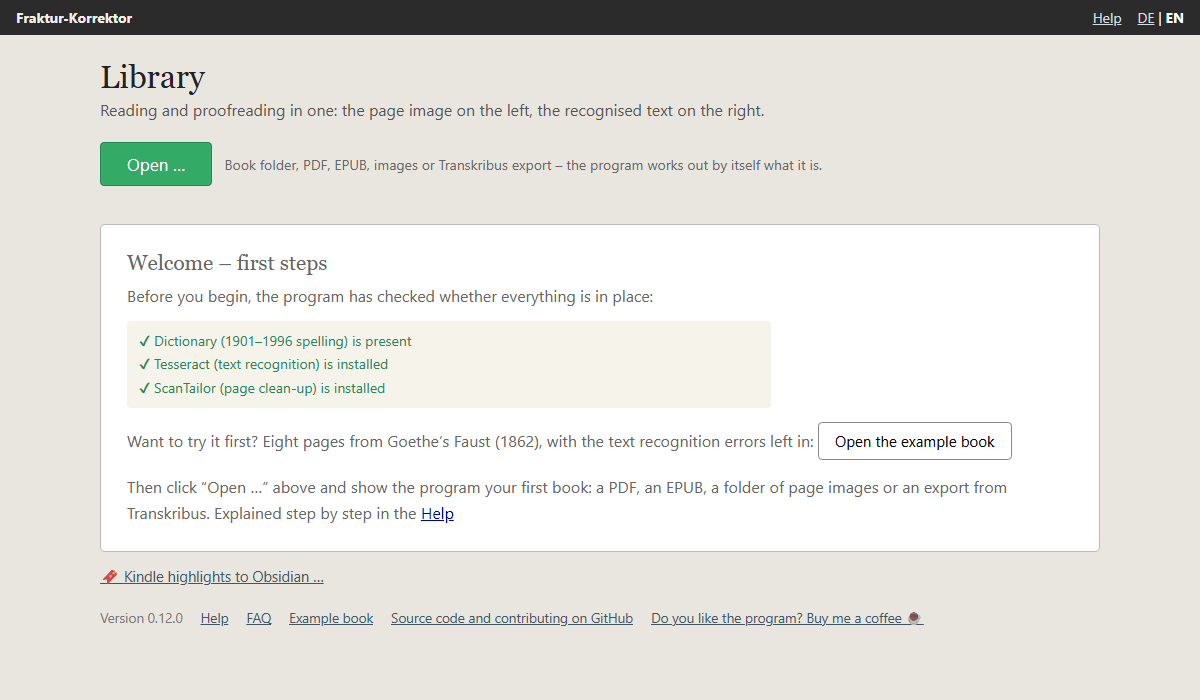
The example book is eight pages from Goethe's Faust in an 1862 edition: the title page, the beginning of the monologue “Habe nun, ach! Philosophie …” and three pages of prose. The text is exactly as the text recognition delivered it – mistakes included. The program puts a copy into your books folder; whatever you change only affects that copy. Later you will find the example book in the library again, and the link Example book is always at the bottom of the library.
What you see
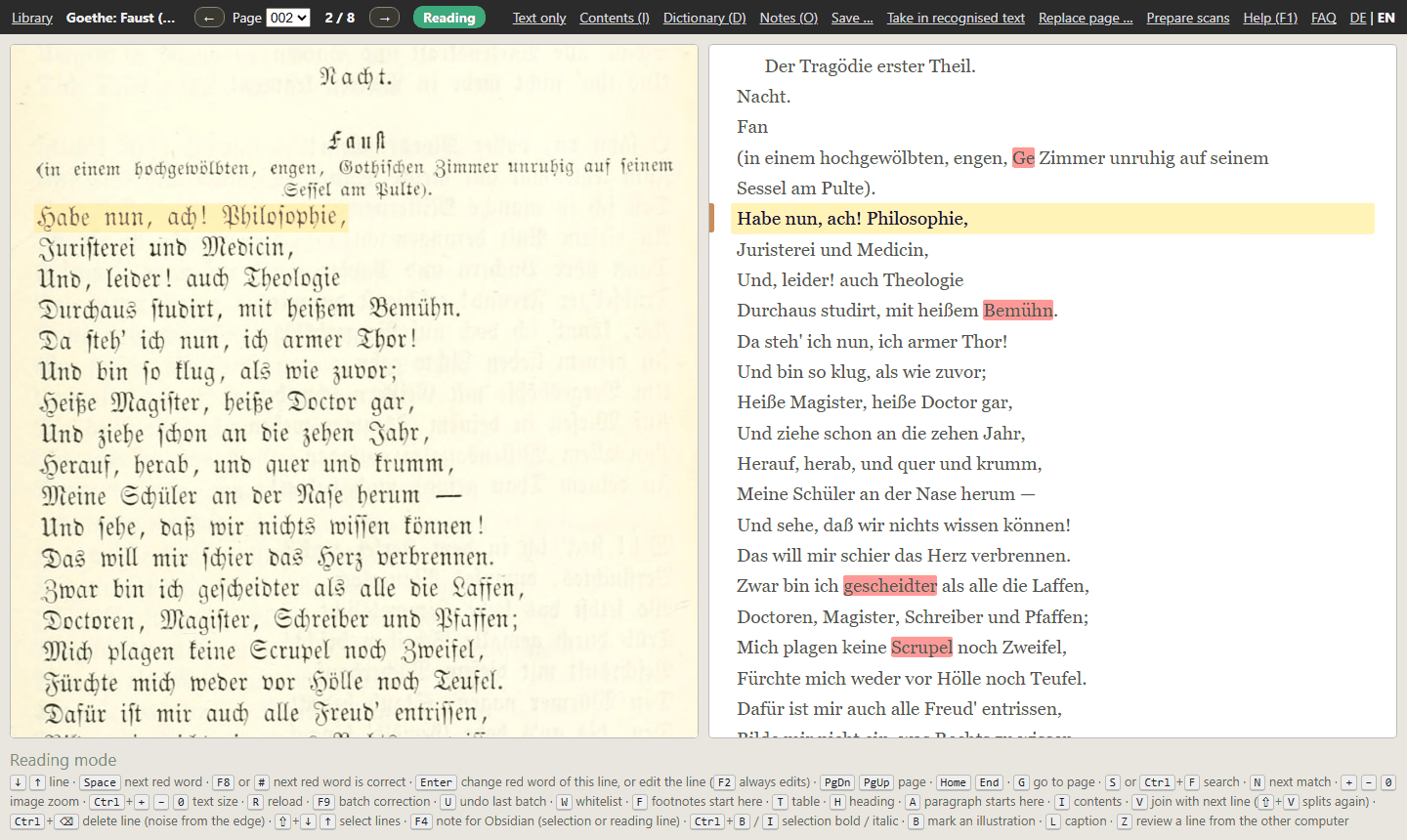
- On the left the page image, as the book was printed.
- On the right the text that the text recognition made of it.
- The yellow reading line is on the same line in both halves. Image and text move together as you read on.
- Red words are not in the dictionary. That does not always mean they are wrong – more on that in a moment.
- At the bottom are the keys that apply right now, so you don't have to memorise anything.
- In the bar at the top you see which state the program is in: Reading (green) or Correction (red).
Reading
Press ↓ and the reading line moves down one line; ↑ goes back. The mouse wheel does the same, and clicking a line
makes it the reading line. At the end of a page the text simply continues on the next one. To turn whole pages, use
PgDn and PgUp.
Correcting a red word
Press Space. The program jumps to the next red word, and the indicator at the top turns red:
Correction. The line becomes an input field, the word is selected, and in the page image it is framed in red – so
you see at a glance what is really printed there.
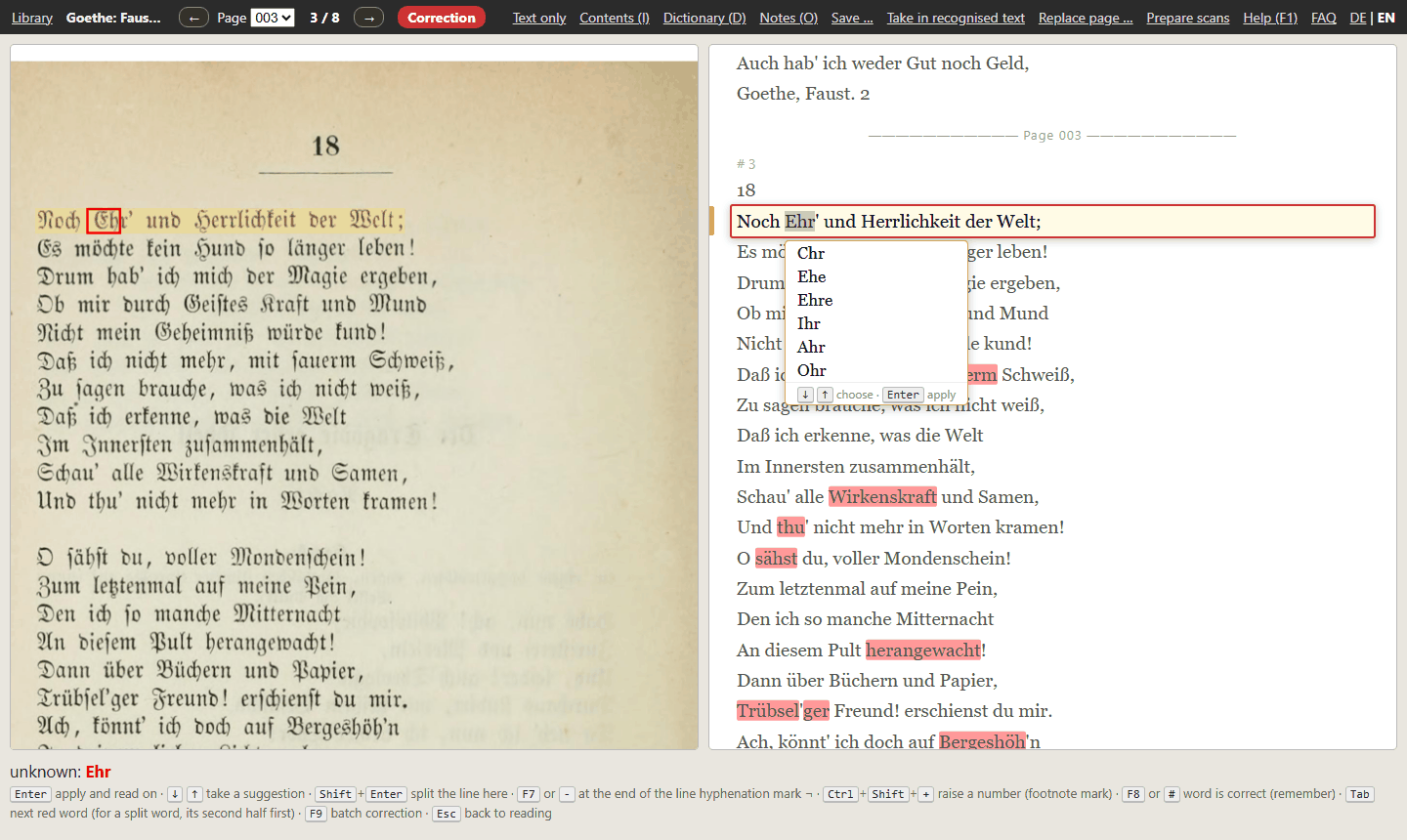
Now you have three choices:
- The word was misread. Simply type the right word – it replaces the selected one. Or pick one of the
suggestions below with
↓.Enteraccepts the correction. That already saves it; there is no save button. - The word is right, the dictionary just doesn't know it – a name, a technical term, an old spelling. Press
F8. The program remembers the word for this book and no longer marks it red anywhere. - You want to look at it later.
Esccancels without changing anything.
The picture above shows case 2: “Ehr'” is Goethe's short form of “Ehre” (honour), so it is right – F8. The page
before has a real mistake: the text recognition turned “gothischen” into “Ge”. Try it there.
After Enter or F8 the program is back in reading mode – unless there is another red word in the same line, which
then comes next. The next Space takes you to the next red word. That is how you work through a book:
Space, look, correct or F8, on.
What is not red
The dictionary only finds words it doesn't know. If a word has turned into a different, correct word, it stays
black – in the example book page 2 has “Fan” instead of “Faust.” near the top. You notice such mistakes while
reading. Then press F2: the whole reading line becomes an input field and you can change anything in it,
punctuation too. Enter accepts.
The ten most important keys
| Key | Effect |
|---|---|
↓ ↑ |
next / previous line |
PgDn PgUp |
next / previous page |
Space |
to the next red word |
↓ (while correcting) |
put a suggestion into the field |
Enter |
accept the correction |
F8 |
the word is right – remember it |
Esc |
cancel without changing |
F2 |
edit the reading line freely |
S |
search the whole book |
F1 |
help |
All the keys and everything else you can do – footnotes, headings, the same correction across the whole book at once, notes for Obsidian – are described under Usage.
Your own book
The way back to the library is at the top left. There you click Open … and show the program your book: a PDF, an EPUB, a folder of page images or an export from Transkribus. What happens then is described under Opening a book and Reading in a PDF or images.
Afterwards you can keep the example book or take it out of the library with Remove from list; the copy then stays in your books folder, and a click on Example book brings it back.