Usage
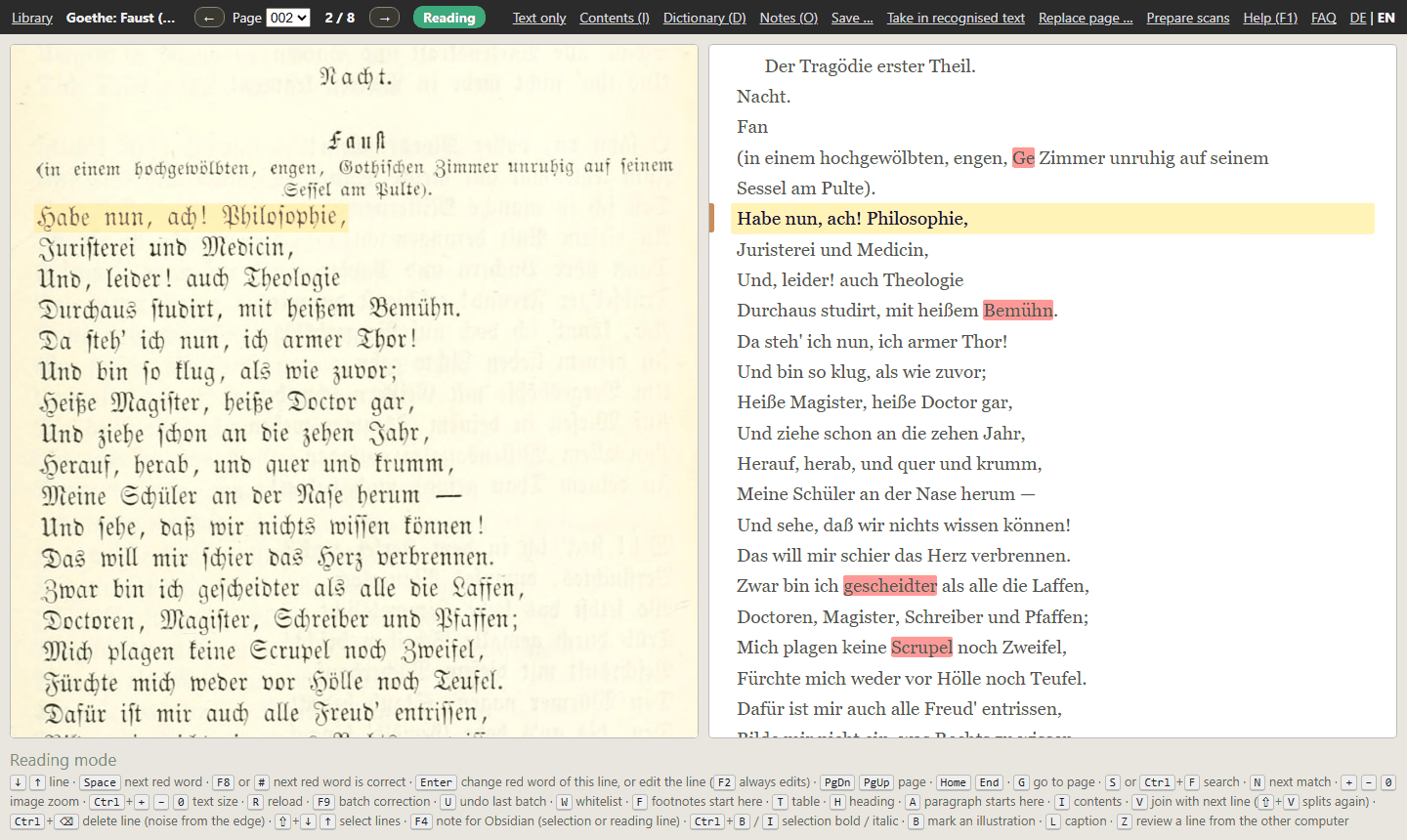
Page image on the left, text on the right. The reading line, highlighted in yellow, always stays at the
same height; image and text move together. Red marks words the dictionary does not know; orange marks
places where an automatic pre-correction made an uncertain replacement. A page number that does not fit the
neighbouring pages is red as well (in Fraktur, OCR likes to read “16” as “46”) – the hint names the number that should
be there, and Space, Enter correct it like a word. The page number may be at the top in the running head or at the
bottom of the page as in more recent books: if a book carries it at the bottom throughout, the program notices this by
itself and shows it there in pale grey like the running head. Likewise the running title of more recent books – the
book or chapter title with the page number at the top of every page (»Stalins Bauernopfer am Schwarzen Meer 9«) that
text recognition read as an ordinary line: it appears in pale grey, is not checked and does not count as text; its
number is taken as the page number. You do not need to enter anything, and the files stay as they are; if a page has no
number (chapter opening), it follows from the neighbouring pages.
If there are several numbers at the bottom – noise from the page margin below it (»428« / »ı10«) or a chapter number
above it –, the one that fits the neighbouring pages counts. With the reading line on the pale page number, the line at
the bottom says which page number counts and what was read. You change it like any line with F2: the page number
is whatever stands in that line. If the program takes a wrong line for the page number, take the digits out of it with F2.
The program has three states, shown in the top bar: Reading (green), Correction (red) – a red word is being changed – and Edit line (orange).
New here? First steps walks you through the essentials using the example book.
Keys
| Mode | Key | Effect |
|---|---|---|
| Reading | ↓ ↑ (or j k), mouse wheel |
next / previous line; the text flows across page breaks. Clicking a line makes it the reading line |
| Reading | Space |
jump to the next red word → correction |
| Reading | double-click a word | a red word: correction; otherwise edit the line, with the clicked word selected |
| Reading | double-click in the page image | the line under the mouse pointer becomes the reading line, in the image and in the text – handy when you spot a place in the image |
| Reading | F8 (or #) |
first red word of the reading line is correct → whitelist. F8 again = the next one. With no red word in the reading line: the next one further down the page |
| Reading | Enter |
if the reading line has a red word: go there; otherwise like F2 |
| Reading | F2 |
edit the reading line freely (punctuation, footnote marks, anything the automatic check misses) |
| Reading | PgDn PgUp, Home End |
page forward/back, top/bottom of page |
| Reading | G |
go to page: an input line for the page number appears at the top |
| Reading | S (or /, Ctrl+F, on a Mac also Cmd+F) |
search the whole book; N (or F3) next, Shift+N previous match (see below) |
| Reading | + − 0 |
zoom the page image (also Ctrl+mouse wheel over the image) |
| Reading | Ctrl++ Ctrl+− Ctrl+0 (Mac: ⌘) |
text size for this book (also Ctrl+mouse wheel over the text); remembered. By itself the program chooses it so that a printed line fits into one line on the right as well – Ctrl+0 restores that |
| Reading | Shift+mouse wheel |
scroll a wide table sideways; it follows the reading line by itself |
| Reading | R |
reload the page (after changes in another editor) |
| Correction / Edit line | Enter |
apply and read on (when correcting: if the same line has another red word, that comes first) |
| Correction / Edit line | Ctrl+Shift++ (Mac: ⌘+Shift++) |
raise the digits before the cursor (or the selected ones) – for footnote marks; again: back to normal (see Footnotes) |
| Correction / Edit line | F7 (or - at the end of the line) |
insert the hyphenation mark ¬ at the cursor. Within the line - stays a hyphen; if the line already ends with ¬, - puts a hyphen before it (Ost-¬ / Preußen) |
| Correction / Edit line | Shift+Enter |
split the line at the cursor (see below) |
| Correction | F8 (or #) |
word is correct → whitelist |
| Correction | ↓ ↑ |
put a suggested correction into the field (see below); Enter applies it |
| Correction | Tab |
next red word without changing anything; for a split word, first into its second half |
| Correction / Edit line | Esc or double-click in the text |
back to reading without changing anything |
| Reading / Correction | F9 |
batch correction (see below) |
| Reading | U |
undo the last batch correction (likewise the paragraphs detected on first opening, see below) |
| Reading | F |
footnotes start at the reading line (see below) |
| Reading | T |
table: turn separate lines into a table, or dissolve it again (see below) |
| Reading | H |
heading: level 1 → 2 → 3 → none (see below) |
| Reading | A |
a paragraph starts here – press A again to take it back (see below) |
| Reading | Shift+A or Shift+Enter |
double paragraph: a paragraph with a blank line before it, after the end of a chapter, say, or between two stanzas (see below) |
| Reading | I |
contents: all headings of the book, Enter goes there (see below) |
| Reading | B |
mark an illustration in the page image so that it goes into the e-book (see below) |
| Reading | L |
the reading line is a caption – press L again to take it back (see below) |
| Reading | V |
join the reading line with the next line; Shift+V splits a line joined this way again |
| Reading | Ctrl+⌫ (Mac: ⌘+⌫) |
delete the reading line, or all lines marked with Shift+↓/↑ – for noise from the scan edge (see below) |
| Reading | Ctrl+Z (Mac: ⌘+Z) |
bring back the lines deleted last |
| Reading | W |
show the whitelist |
| Reading | D |
dictionary: which spelling applies to this book (see below) |
| Reading | Shift+↓ / ↑ |
select lines, for a note or to delete them (within the page); any other key clears the selection |
| Reading / Correction | F4 or right-click the selection |
note for Obsidian from the selected passage, otherwise from the reading line (see below) |
| Reading | Z |
after merging two states of a book: to the next line that was corrected differently on both computers; 1 keeps this version, 2 takes the other (see Saving a book as PDF) |
| Reading | O |
set the notes folder for this book |
| anywhere | F1 |
this help |
Search (S) and go to page (G)
S – or the familiar Ctrl+F (on a Mac also Cmd+F) – opens an input line in the top bar. Whatever you type there is searched throughout the book – regardless of
upper and lower case, ſ counts as s, and a word is found even when it is hyphenated at the end of a line. Enter
jumps to the first match after the reading position; it is marked blue in the text and framed in the page image.
A small panel stays at the top with the search term, the count (“3 / 17”) and two buttons: N goes to the next
match, Shift+N to the previous one, the × closes the search. Esc discards the input.
G asks for a page number in the same way. This means the page of the file (the number in the selector at the
top), not the page number printed in the book.
Next to the selector you see which page out of how many you are on ("4 / 30"); the arrows ← and → on either
side turn the page like PgUp and PgDn.
Hyphenated words
Words split at the end of a line are written with the mark ¬: Zu¬ / kunft. Both parts are checked
together. When correcting, both lines appear as input fields, with the cursor in the first. To reach the second half,
press Tab or move past the end of the line with → – back with Shift+Tab or ← at the start of the line (↓
and ↑ do the same as long as there are no suggestions; otherwise they pick a suggestion). Enter applies both lines.
F7 inserts the mark, at the end of the line so does - (reachable on a MacBook without fn).
A word split across the page break (Ge¬ at the end of one page, walt at the start of the next, the page number in
between) is checked as a whole, too. If it is unknown, both halves are red; the hint then says that the word continues on
the other page, and you change each half on its own page.
Suggested corrections
As soon as you open a red word for correction – with Space, with Enter on a line containing a red word, with Tab
to the next one, by clicking the word, or because after Enter another red word remains in the same line – the program
shows suggestions in a small menu below the word, the most likely first (at most six):
- What you have already made of it in this book. Once you have corrected
WürllembergtoWürttemberg, the nextWürllemberggets that as its first suggestion – the program learns from your correction log, batch corrections included. What you made of it most often comes first. - Typical misreadings of Fraktur OCR, undone:
b/d,f/s,n/u,r/t,ll/tt, missing umlaut dots.berbecomesder,BolkbecomesVolk,ZutunftbecomesZukunft– but only if the result is a known word (dictionary, whitelist, or frequent in the book). Words frequent in the book come first. - The dictionary (Hunspell). These take a second or two, so the program works them out for the next red words while you are still reading – when you get there, they are usually ready at once. Otherwise they appear a little later; the first two groups are always there at once. If you have already picked a suggestion by then, it stays – the dictionary suggestions are only appended. This work never slows down your keys: it pauses whenever the program is doing something for you. For words of just two letters the program does not ask the dictionary.
↓ puts the first suggestion into the field, each further ↓ the next, ↑ goes back (down to the word as it was
recognised); clicking a suggestion does the same. Enter applies as always. If none of the suggestions fits, just type.
If the program finds nothing for a word, no menu appears. There are no suggestions
when editing a line freely (F2) or in a table, nor for a red page number in the header – there the expected number is
already in the hint above the field.
Batch correction (F9)
The same misreading often occurs dozens of times in a book (ber for “der”, bie for “die”). Batch
correction lists every occurrence of a word at once and replaces them after a quick look at the image
snippets.
- After correcting, say,
ber→der, you see the hint “‘ber’ occurs 74 more times in the book – F9 lists them all”. This holds until you move on yourself – even if the program has already jumped to the next red word in the same line. - If you are on a red word,
F9takes that word – when correcting as well as when reading (the red word of the reading line). If you have already typed the correction into the field, it is filled in as the replacement; otherwise you type it. - Otherwise you enter both words yourself.
Each occurrence shows page and line, the image snippet with a red frame, and the text. All occurrences are ticked to begin with; words split across line ends are found as well.
| Key | Effect |
|---|---|
↓ ↑ |
move through the list |
Space |
tick / untick |
A |
all on / all off |
Tab |
change the replacement |
Enter |
replace all ticked occurrences |
Esc |
cancel |
U in reading mode undoes the last batch. Lines you have changed by hand since then are left alone.
Footnotes (F)
In the text file, footnotes follow a line --- and always run to the end of the page. F sets or moves
this separator to just before the reading line. If the reading line is the first footnote line, F removes
the separator again.
If text recognition did not separate the footnotes – it often reads their superscript numbers as »3!«, »°« or »S,« –,
the program detects them itself when the book is first opened: by the larger gap that precedes the footnote rule in
print, and by the smaller type. It then sets the separator on those pages and says in the status line at the bottom on
how many. Where it got it wrong, correct it with F as above. This happens only in books that really have footnotes,
and only on pages that do not have a separator yet.
Footnote marks in the text. The superscript numbers that refer to a footnote are often read by text recognition
as *, or stuck to the word as ordinary digits (»beziffert.36«). To enter them raised: type the number and press
Ctrl+Shift++ (as in Word; on a Mac ⌘+Shift++) – in the field it then appears raised (»beziffert.³⁶«), in
the text file as <sup>36</sup> as in an e-book. The same keys again make it normal. The suggestions make it easier:
on pages with footnotes the program marks such places in blue, Space (or Enter in the line) goes there as to a red
word, and the number is already in the field, raised – Enter accepts it. If it is wrong, ↑ and ↓ count it up or
down, or you type the correct number: at this place it is raised straight away. The number follows from the
numbering: the previous footnote and the readable numbers of the footnotes at the bottom of the page. Where text
recognition swallowed many marks, it is off – once one is set correctly, the following suggestions go by it. The quotation of a note (F4)
contains no footnote marks.
Splitting and joining lines
Sometimes text recognition misses a line break – two lines (or two table cells) end up in one – or it makes one too many.
- Split: edit the line (
F2orEnter), put the cursor at the place and pressShift+Enter. Whatever you have already changed in the field is applied along with it. - Join: in reading mode press
V– the reading line is joined with the next one. If it ends with the hyphenation mark¬, the split word is pulled together (Zu¬+kunft→Zukunft). If the two lines are one below the other in the page image too, the program asks first (pressVagain): the result would be an overlong line that is two in print. To mark a paragraph, do not join lines – useAfor that (see below). - Split again:
Shift+Von a joined line splits it exactly where it was joined, image area included – pressed several times, several joins. This works as long as the line has not been changed since.
The program also splits or merges the image area of the line (when splitting, proportionally at the split point; if it is several lines high, horizontally between the printed lines). This way every line of text keeps its place in the page image – unlike changing the number of lines in another editor. Inside a table, the table is renumbered afterwards: shifted columns fall back into place.
Deleting noise from the scan edge
With scans that have a dark edge or a cut-off neighbouring page, text recognition sometimes reads lines that are not text
at all – at the top, or below the page number, there are strings like BTB, LLL AAA or E NN SE HE K. Delete such lines
in reading mode with Ctrl+⌫ (on a Mac ⌘+⌫, the delete key): the reading line disappears without asking. Several
lines at once: mark them with Shift+↓/↑, then Ctrl+⌫.
Deleted by mistake? Ctrl+Z (on a Mac ⌘+Z) puts the lines deleted last back in their place, also several times in a
row. The Del key on its own deliberately deletes nothing – it is too easy to hit while reading.
The running head, the footnote rule, the page number at the bottom and lines of a table cannot be deleted this way. As
with splitting and joining, the image area of the line goes too, and the other lines keep their place in the page image;
every deletion is recorded in the log korrekturen.log.
Tables (T)
Text recognition usually tears tables apart into single lines – a listing turns into
im Jahre 1811
16 842 Eimer,
1812-
12 409
Put the reading line on the first line and press T. Use ↓ to extend the range to the last line of the table and
2 … 9 to choose the number of columns; the preview at the top shows at once how the lines are distributed over rows and
columns (in order, from left to right). H turns the first row into column headers, Enter applies, Esc cancels. T on
an existing table removes the markup again after asking – the text stays.
The program does not invent a format of its own for this; it writes the same markup into the text that an EPUB uses (XHTML):
<table><tr><td>im Jahre 1811</td>
<td>16 842 Eimer,</td></tr>
<tr><td>1812-</td>
<td>12 409</td></tr></table>
Every line stays a line – one cell per line – so that the alignment with the page image is kept. You never get to see these
control characters in the program: on the right the finished table appears as a table, with borders and columns, and the
input field, too, shows only the content of the cell. The reading cursor moves cell by cell, and the matching place in the
page image is highlighted on the left. The word check skips the markup. You correct the content of the cells like any
other text (delete superfluous dashes as in 1812- with F2).
Shifted columns: if two cells are in one line (1812- 12 409) because text recognition missed the line break, all
columns from there on shift by one. Split the line at that place (F2, position the cursor, Shift+Enter) – before or
after creating the table; an existing table is renumbered by the program afterwards.
Limitation: the cells have to be in reading order (row by row). If text recognition read a table column by column, it cannot be marked up this way.
Headings (H)
H marks the reading line as a heading: level 1 the first time (<h1>…</h1>), the next level with each further press,
ordinary text again after level 3. Headings are shown larger and bold, without visible control characters.
If a heading runs over two or more lines (“Chapter Three.” / “The Journey to Odessa.”), select the lines with
Shift+↓ (or with the mouse) and press H: they get the same level, and the program joins them into one heading. If
the reading line is part of such a heading, H changes the level of all its lines – no new selection needed. A
paragraph start in the line is dropped: a heading is a block of its own. Best use the levels the same way throughout the book: chapters level 1, sections
within them level 2; if the book has parts, the parts are level 1 and the chapters level 2.
Contents (I) shows all headings of the book, indented by level, with the printed page number – so you can see
whether a chapter is missing. ↓ ↑ select, Enter or a click goes there, Esc closes. When you
save the book as a PDF, the headings become the PDF's table of contents, which every PDF reader shows
in its sidebar. When you save the book as an e-book, they become chapters and a clickable table of
contents.
Paragraphs (A)
In print every line runs to the margin; only the indentation of its first line shows where a paragraph begins. For the e-book, where the text flows freely, the program has to know the paragraphs. When a book is opened for the first time, it detects them itself from the indentation in the page image and indents the first line of each paragraph in the text too; the status line at the bottom says how many it found.
Where it got it wrong: A on the reading line sets a paragraph start there, pressing A again removes it. U undoes
all detected paragraph starts at once, as long as no batch correction came after them (U says beforehand what it will
undo). The book is not detected again after that – then set the paragraphs by hand with A.
Only what looks unambiguous is detected: the line is indented against its neighbours, and the line before ends with a
punctuation mark. Verse, lists and indexes are thus mostly left alone. Without line positions in the image (a book from
an EPUB without a PDF) or in a book without indentation, the program detects no paragraphs. In the text file a
paragraph start is written as <p> at the beginning of the line, as in an EPUB.
Double paragraph (Shift+A or Shift+Enter)
Sometimes the print has a blank line between two paragraphs: where one section ends and a new one begins, at the end
of a chapter before the next part, or in a poem between two stanzas. Shift+A – or Shift+Enter – on the first line after
it sets such a double paragraph: the text shows a space above it, the e-book a blank line. Shift+A once more
takes the blank line away again and the paragraph stays; A takes back the whole paragraph. On a tablet the button is
called ¶¶. (In the input field, by contrast, Shift+Enter splits the line, see Splitting and joining lines.)
The blank line is not a line of its own in the text file – every line there belongs to a line in the page image. It is
written as <p><br/> at the beginning of the line. When the program reads in an EPUB, a section break in it (<hr/>)
becomes a double paragraph too.
Illustrations (B) and captions (L)
Of the page image the program only knows the text lines. You show it where an illustration, a map or a plate is – then it goes into the text as a picture when you save the book as an e-book. The text itself does not change.
Marking an illustration (B): The B key shows the whole page on the left. If the program finds a printed area
that contains no text line, it suggests a frame (dashed).
- If the suggestion fits:
Enteraccepts it. That way it works with the keyboard alone. - If it does not fit, or there is none: drag a frame around the illustration with the mouse, then
Enter. Missed? Simply drag again. Gtakes the whole page – for a plate or map that fills the page.Escgoes back to reading without changing anything.
Marked illustrations have a green frame in the page image, while reading too. To get rid of a frame: B, click
the frame (if there are several on the page; Tab goes to the next) and Del. A page can have several illustrations;
press B once for each.
The suggestion is only a suggestion: a line that text recognition overlooked, or a library stamp, looks just like a
small illustration to the program. If lines of gibberish lie over an illustration (text recognition took the picture
for text), delete them with Ctrl+⌫, see Deleting noise from the scan edge.
Caption (L): If there is a caption below the illustration ("Fig. 3: The colony of Rohrbach"), text recognition
read it as an ordinary line – in the e-book it would sit in the middle of the paragraph. L marks the reading line as
a caption; it then appears smaller, with a green bar at the edge. If the caption runs over several lines, give each
line an L. L again takes it back.
In the e-book the caption stands below the nearest illustration on its page and also serves as its description for screen readers. An illustration without a caption stands where it belongs according to the position of the lines in the page image – but never in the middle of a paragraph: it follows the paragraph it lies in.
In the text file a caption is written as <figcaption>…</figcaption>, as in an EPUB. The frames of the illustrations
are kept in the file bilder.json in the book folder; they travel to another computer with the
saved PDF. If a page is replaced, its frames are dropped – the new image is a
different one.
Bold, italics and underline (Ctrl+B, Ctrl+I, Ctrl+U)
As in Word: select the words with the mouse – or whole lines with Shift+↓/↑ – and press Ctrl+B for bold,
Ctrl+I for italics or Ctrl+U for underline (⌘ on a Mac). The words appear in that type style right away, and later in the
e-book too. The same selection once more takes it back. The selection may run over several lines.
Type styles taken in from an EPUB can be changed in the same way.
The three keys also work in the input field (F2 or while correcting): there they put the characters <b>…</b>,
<i>…</i> or <u>…</u> around the selected characters – without a selection around the word at the cursor.
Further markup
If you like, you can also enter further markup by hand with F2; the program knows <em>, <strong>, <i>, <b>,
<u>, <sup>, <sub>, <p>, <blockquote> and <br/>, does not treat them as words, and shows font markup (italic, bold,
underline, superscript, subscript) as such.
Whitelist (W)
The whitelist holds the words you confirmed with F8 (names, places, old spellings). W shows it, newest
first, with a filter. Del, Space or a click removes a word or restores it – it then turns red again in
the book.
Dictionary (D)
Whatever the dictionary does not know turns red – so the dictionary has to suit the book. D (or “Dictionary” in the top
bar) shows three tick boxes; the choice applies to this book only and is saved:
| Tick box | Examples | What for |
|---|---|---|
| Accept spellings from before 1901 | Thür, Noth, seyn, giebt, civilisiren | 19th-century prints – and newer works that quote old sources verbatim |
| German spelling 1901 to 1996 | daß, Schiffahrt, rauh | most Fraktur prints, everything up to the spelling reform |
| Reformed spelling (from 1996) | dass, Schifffahrt, rau | newer books, scripts, papers |
When a book is read in, the program estimates the year of publication from the title pages and imprint and ticks the
boxes accordingly: before 1902 the first two, up to 1997 the middle one, from 1998 the lower two (the changeover took
years, and newer works quote older texts). After every change the window shows how many red words the book had before and
has now – so you see at once what fits. On the keyboard, 1, 2, 3 toggle the boxes and Esc closes. Genuine misreadings (ber, bie, Bolk) stay red in every setting.
Independently of this, the following always count as correct: common abbreviations (Vgl, Bd, Ebd, Hg, Bible references
such as Offb, Joh), sigla in capitals that occur more than once (BWKG, LKA), and longer words that occur at least three
times in the book (mostly names). A name that is still red is confirmed once with F8 – this then applies to every
occurrence.
Notes for Obsidian (F4)
If you take excerpts while reading, every passage can become a note in Obsidian – modelled on Niklas Luhmann's Zettelkasten: one thought per note, each with its source.
- Once per book: press
O(or “Notes” in the top bar) and enter the folder in your Obsidian vault where the notes on this book belong, e.g.…/Vault/Research/Leibbrandt 1928. The “Choose folder …” button opens the file dialog; a missing last folder is created. The choice is stored inbuch.json. - While reading, select a passage with the mouse – across several lines if you like – and press
F4, or right-click the selection. Without a mouse: go to the first line, holdShiftand select the lines you want with↓or↑(highlighted in blue), then pressF4. Without a selection the reading line becomes the note. If no notes folder has been set yet,F4asks for it first.
The program creates a file in that folder, numbered consecutively, for example 07 Page 57.md:
**Note**


---

> Die Kolonisten zogen nach Rußland und der Weg war weit.

Page 57, Line 3–4, [[0 Source|Leibbrandt 1928]] · [Scan](http://localhost:8765/stelle?buch=6b8d…&seite=057&zeile=3-4)
At the top room for your own remark, below the rule the quotation (words hyphenated at line ends are joined) and the
page – the printed page number from the running head or the foot of the page; if it is missing or does not fit the neighbouring pages, the
number the neighbouring pages imply; otherwise the PDF page –, the lines (counted as in “Line 3/42” in
the program's top bar), a link to the book's source note and the link back to the scan (see below). The program creates that file, 0 Source.md, as a template with the first note; enter there where the book comes from
(university library, interlibrary loan …) and the citation as Zotero gives it. This way every note is one click away
from its full source. The quotation is also placed on the clipboard.
If Obsidian is installed, it opens the new note immediately and, on Windows, comes to the front (the folder has to be inside a vault Obsidian knows). Without Obsidian the file simply stays in the folder – it is plain Markdown.
Back to the source: Clicking Scan at the end of the source line opens the book in Fraktur-Korrektor right at that passage – the page image on the left, the text on the right, the quoted lines highlighted in blue and framed in blue in the image. So while writing you can check without searching whether the quotation is right, what comes before and after, and what the footnote says. Your bookmark stays where it was; it only moves on when you read on in the book yourself.
- Fraktur-Korrektor has to be running for this. If the browser says it cannot reach the page, start the program and click the link again.
- The link finds the book even after you have moved its folder or read the book saved as a PDF into another computer. If it is not in the library, the program tells you how to get it back in.
- The lines refer to the state when the note was made. If you later joined or split lines on that page, the highlight may be one line off.
- Notes made before this feature stay without a link – the program never changes a file you may have edited. Notes from Kindle highlights have no link, as there is no page image for them.
Highlights you made on your Kindle become notes in the same way: Highlights from the Kindle. How to write notes on a tablet or phone is described below under Reading on a tablet.
Replacing a page
One page was scanned crooked, cut off or blurred, and the book is otherwise fine? Then the whole book need not be recognised again. Photograph or scan the page once more and click Replace page … in the top bar (only on the computer the program runs on):
- Choose the file – an image (JPG, PNG, TIF) or a PDF. For a PDF with several pages, say which page is meant; the number of the page you are on is suggested.
- Choose the script (Fraktur or Antiqua) and click Replace page.
The page image is swapped and the text of this page only is recognised again – with Tesseract, or without Tesseract
with the text a searchable PDF already carries. All other pages stay as they are, including your corrections there.
The previous version of the page – text, line positions and image – is backed up in the book folder
(vorher-<date>.zip); Earlier version in the library brings it back.
Reading on a tablet
From a tablet – say the iPad on the sofa – or from a second computer you read along over your home network. For this,
the program must be started on the computer with the option --lan; the address for the tablet is shown in the window
at start-up, for example http://192.168.1.20:8765. Type it into Safari and bookmark it. There is no password
protection – use it on your own home network only. Books can only be added on the computer the program runs on.
It works on the iPhone too, best held upright: then the text stands alone, and everything below applies just the same. Because the screen is narrower, the header leaves out the word “Page” and the page count “1 / 300” (the selection shows the page); Library is in the ☰ menu.
On the tablet you work with your finger:
- View: In portrait only the text is shown; at the top right you switch between Text and Page image. In landscape image and text stand side by side as on the computer. The ☰ menu switches between Text only and Image and text; the tablet remembers the choice, separately for portrait and landscape. The menu also holds Search, Contents, Notes and the help.
- Illustrations: The ☰ menu holds Mark an illustration and Caption – what
BandLdo on the computer. You drag the frame with your finger in the page image; below it are Accept, Whole page and Back to reading. Caption applies to the reading line. - Reading: Your finger scrolls the text through the whole book – like a long till receipt, without stopping at the page breaks. The line level with the small orange mark on the left edge is the reading line; the program remembers the place. Tapping a line makes it the reading line, in the text as in the page image. Spreading or pinching two fingers makes the text (or, on the image, the image) larger or smaller.
- Correcting: Tap a red word – or Next red word at the bottom. At the bottom, where your finger already is, the
line appears as a cut-out of the page image with the doubtful word framed in red, below it the suggestions and
buttons (while you type, right above the on-screen keyboard). With image and text side by side, the cut-out is left
out – the page image on the left already shows the line – and suggestions and buttons stand in one row. Tap a
suggestion and it is applied. Correct as is (green, always at the bottom left where your thumb already is)
remembers the word as correct (like
F8) and takes you back to reading, on the same line – so the view does not jump pages ahead and you keep your place. Exactly where Correct as is was, Next red word now appears: tapping the same spot twice moves straight on. Skip moves to the next red word, Type it opens the keyboard (the return key or Apply saves, Cancel restores the line, say if the selected word was deleted by mistake), ¶ Paragraph starts a paragraph in this line, Delete line removes the whole line when the red word sits in noise from the scan edge (you are then back to reading, where ↶ Bring back is at hand), Back to reading ends – as does simply swiping over the text with your finger and reading on; nothing is applied then. If you started with Next red word, each correction takes you straight on to the next one – except after Correct as is. If the corrected word occurs more often in the book, Change everywhere appears – the batch correction as withF9. Edit line opens the reading line when something other than a red word is wrong. - Delete line: A line that is nothing but OCR noise (specks from the scan edge, jumbled letters) is removed with
this button, while reading and while correcting – like
Ctrl+⌫, without asking. If it was a mistake, ↶ Bring back puts the most recently deleted line back in its place, even if you have read on in the meantime. - Paragraph and heading: The buttons at the bottom right apply to the reading line. ¶ Paragraph starts a new
paragraph there (like
A), ¶¶ a double one with a blank line before it (likeShift+A), Heading 1 2 3 makes the line a heading of that level (likeH) – 1 for chapters, 2 and 3 for sections within them. What the line already is, is highlighted; tapping it again takes it back. For a heading over several lines, select them with your finger and then tap the level. - Bold, italics, underline: Select words with your finger (press and hold a word, then drag the handles) and tap B for bold, I for italics or U for underline at the bottom. The same selection once more takes it back.
- With a keyboard: Tables, the footnote rule, splitting or joining lines need the keys. With a keyboard attached to the tablet, all keys work as on the computer.
Notes on a tablet or phone
Notes with your remark can be made on the go too – without needing another app:
- Select a passage with your finger: press and hold a word, then drag the handles.
- Tap Note from selection at the bottom (without a selection the button says Note and takes the reading line).
- A field opens: the quotation at the top, below it you write your remark. Save note – done.
The note is created on the computer, in the notes folder you set there for the book (O) – just as with F4:
numbered consecutively, with the quotation, page and line, the reference to the source note and your remark at the
top. Obsidian on the computer shows it right away; with Obsidian Sync it is on your other devices too. The remark may
stay empty; you can add to it later in Obsidian. Click the Scan link in the note on the computer: it leads to the
program running there.
No notes folder set yet? The note is still not lost: it waits in the book folder. As soon as you set a notes folder
on the computer with O, it moves there by itself and gets the next free number. You can also set the folder on the
computer via Remote Desktop – the program recognises the computer even when the browser there shows the home-network
address from the tablet.
With a keyboard, Ctrl+Enter saves and Esc cancels. This also works on a second computer reading along over the
home network.
Our recommendation: create the note via the computer – as described above, writing the remark in the program. Obsidian on the tablet itself does not work reliably with the program (as of October 2026): if Obsidian is not already open in the background on the iPad, it shows only the note you had open last instead of the new one, and the note is not created at all. This is a bug in Obsidian that the program cannot fix. Via the computer nothing is lost; with Obsidian Sync the note is on the tablet shortly afterwards, and you can carry on writing there.
Still want Obsidian on the tablet? If Obsidian is installed there and keeps the vault in step with the computer (Obsidian Sync), you can tick Open Obsidian on this device instead under ☰ → Notes. Then Note opens the new note with quotation and source in Obsidian, and you write your remark there; the first time, Safari asks whether it may open Obsidian (if it does not open by itself, tap open in Obsidian in the message at the bottom). If the vault has a different name on the tablet than on the computer, enter that name there. If Obsidian shows only the note you had open last, go back to the program and tap open in Obsidian in the message once more – the second time the note is usually created.