Installing the program
Fraktur-Korrektor is a finished program: download it, double-click, start working. There is nothing else to install – text recognition (Tesseract) and the dictionaries come with it (on Linux, Tesseract comes from the package manager, see below), and the program splits double pages and straightens crooked pages by itself. Only for particularly difficult scans is there the free add-on program ScanTailor, which you fetch if needed: Installing the tools.
All versions are on the releases page.
These instructions describe Windows 11 and macOS as of October 2026. On Windows 10 the windows look a little different, but the steps are the same.
Windows
- Download: click Fraktur-Korrektor_Setup.exe. The browser puts the file into your Downloads folder.
- If the browser holds the file back: Microsoft Edge sometimes says the file “isn’t commonly downloaded”. In the list of downloads (top right), click the three dots … next to the file, then Keep; in the next window click Show more and Keep anyway.
- Click the file in the list of downloads (or double-click it in the Downloads folder).
- The first time, a blue window appears: “Windows protected your PC”. This does not mean anything is wrong: the message appears for every program that few people have downloaded so far. Click the underlined text More info.
- A second button now appears at the bottom. Click Run anyway. (The publisher is shown as “Unknown publisher” – the program does not carry a digital signature yet.)
- The installer asks for the language – pick English and click OK.
- It asks whether to install for you only or for all users. Click Install for me only (recommended). Windows then does not ask for an administrator password.
- The License Agreement (the GPL, a free licence): click I accept the agreement, then Next.
- Accept the suggested destination location with Next.
- Under Additional tasks, Create a desktop shortcut is ticked – leave it, Next.
- Click Install. It is done within a few seconds.
- In the last window, Launch Fraktur-Korrektor is ticked. Click Finish – the program starts, see The first start.
Fraktur-Korrektor is then in the Start menu and on the desktop.
There is also a version without an installer: download Fraktur-Korrektor-v….-win64.zip from the releases page,
right-click → Extract All …, and double-click Fraktur-Korrektor.exe inside. Handy for a USB stick. The blue
message described above appears on its first start, too.
Mac
- Which Mac do you have? Click the Apple symbol at the top left, then About This Mac. If there is a line Chip saying “Apple M…” (M1, M2, M3 …), your Mac has an Apple chip. If there is a line Processor saying “Intel”, it is an Intel Mac.
- Download – click the matching version:
for Macs with an Apple chip (M1 and later)
· for Macs with an Intel processor.
The file lands in your Downloads folder; its name ends in
.dmg– a kind of package that the Mac opens like a drive when you double-click it. - Double-click the downloaded file. A window opens showing the Fraktur-Korrektor icon and the Applications folder. Drag the icon onto the Applications folder with the mouse button held down, and let go.
- Close the window. The Finder sidebar still lists “Fraktur-Korrektor” with a small eject symbol ⏏ next to it –
click it. You can then delete the
.dmgfile in Downloads. - In the Finder, open the Applications folder and double-click Fraktur-Korrektor.
- On the first start, the Mac asks whether you really want to open this program downloaded from the internet. The program has been checked and notarised by Apple; click Open. You are asked only this once.
If the Mac later asks whether Fraktur-Korrektor may access a folder (such as Documents) or control your browser, click Allow or OK: the program needs this to open your books and to bring the browser window that is already open to the front.
The Mac needs macOS 15 (Sequoia) or newer.
Linux
As of September 2026. The Linux version is an AppImage: a single file that runs without installation. It is built for ordinary PCs (x86_64) and needs a distribution from Ubuntu 22.04, Debian 12 or Fedora 36 onwards.
- Download: Fraktur-Korrektor-linux-x86_64.AppImage
- Make the file executable: in the file manager right-click → Properties → Permissions tab → tick
Allow executing file as program (the wording varies a little between desktops). In a terminal:
chmod +x Fraktur-Korrektor-linux-x86_64.AppImage. - Double-click the file. A small window with the buttons Open in browser and Quit Fraktur-Korrektor appears, and the browser shows the library.
-
Add text recognition – only needed if you want to read in PDFs or images that have no text yet. It comes from the package manager of your distribution, in a terminal:
sudo apt install tesseract-ocr tesseract-ocr-deu # Ubuntu, Debian, Mint sudo dnf install tesseract tesseract-langpack-deu # Fedora
The Fraktur model is downloaded by the program itself the first time you read something in (about 10 MB, into your home folder). Open … → Tools in the library shows what is available.
It does not start? Some systems lack support for mounting AppImages (FUSE). Then run
./Fraktur-Korrektor-linux-x86_64.AppImage --appimage-extract-and-run in a terminal, or take
Fraktur-Korrektor-v….-linux-x86_64.tar.gz from the releases page: unpack it and double-click
Fraktur-Korrektor inside.
The first start
A browser window opens showing the library – the browser is the program’s window. Use Open … to point the program at your first book; see Opening a book.
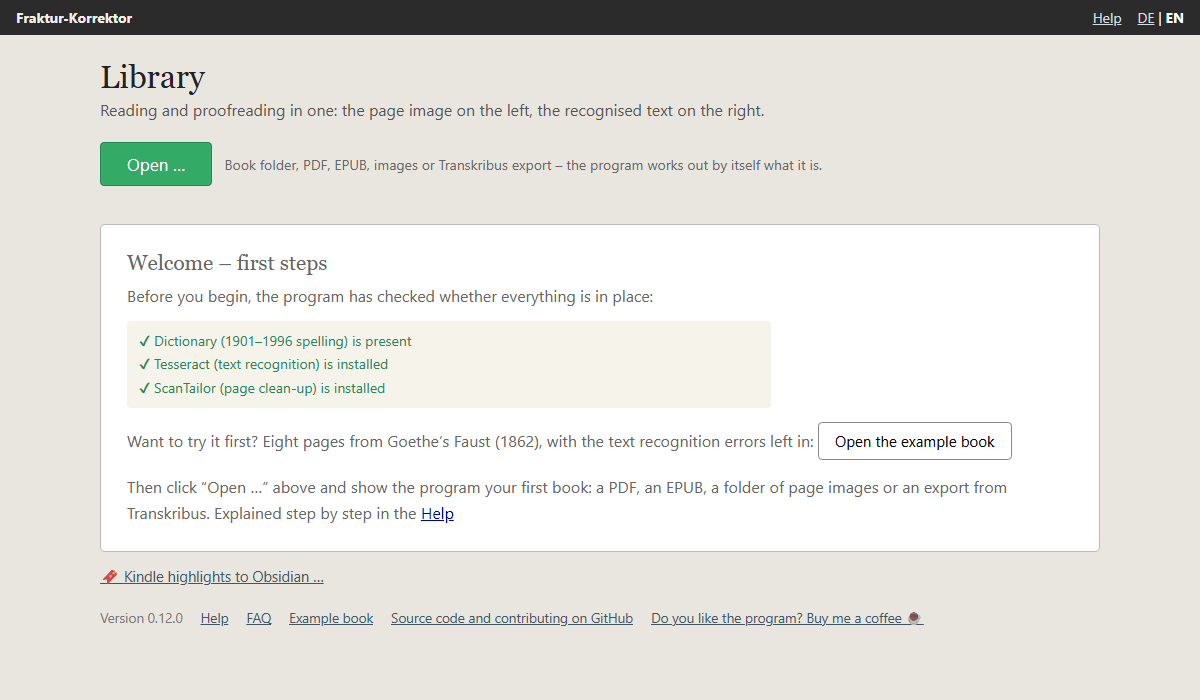
No book of your own to hand yet? Open the example book lets you try everything on eight pages of Goethe’s Faust – step by step under First steps.
The program runs on your computer only and sends nothing to the internet.
Quitting: closing the browser window is not enough – the program keeps running. This is how you quit it:
- Windows: at the bottom right of the taskbar, next to the clock, is the Fraktur-Korrektor icon. If you do not see it, first click the small arrow ^ next to it. Right-click the icon and choose Quit Fraktur-Korrektor. (Double-clicking the icon brings the browser window back.)
- Mac: right-click the icon in the Dock and choose Quit – or click the small book symbol in the menu bar at the top and choose Quit Fraktur-Korrektor.
- Linux: click Quit Fraktur-Korrektor in the small window.
No window opened? Open your browser and go to http://localhost:8765.
Updating
First quit the running program (see above). Then download the new version and install it just as the first time; on Windows simply over the old version, on the Mac drag it into Applications again and confirm with Replace. Your books and settings are untouched.
Where are my things?
| What | Where |
|---|---|
| books you have read in | folder Fraktur-Korrektor in your home folder |
| settings, list of books | folder .fraktur-korrektor in your home folder (hidden) |
| the program itself | Windows: AppData\Local\Programs\Fraktur-Korrektor in your home folder (with “for all users”: Program Files\Fraktur-Korrektor) · Mac: Applications/Fraktur-Korrektor.app · Linux: the AppImage file, wherever you put it |
Back up the Fraktur-Korrektor folder now and then – all your work is in there.
Removing it again
Windows: Start → Settings → Apps → Installed apps, click the three dots … next to Fraktur-Korrektor →
Uninstall.
Mac: drag Fraktur-Korrektor.app from Applications to the bin.
Linux: delete the AppImage file.
Your books stay where they are; delete the two folders above by hand if you want to get rid of those as well.